Map and location
Use trip, beat, and live field location context without losing scope.
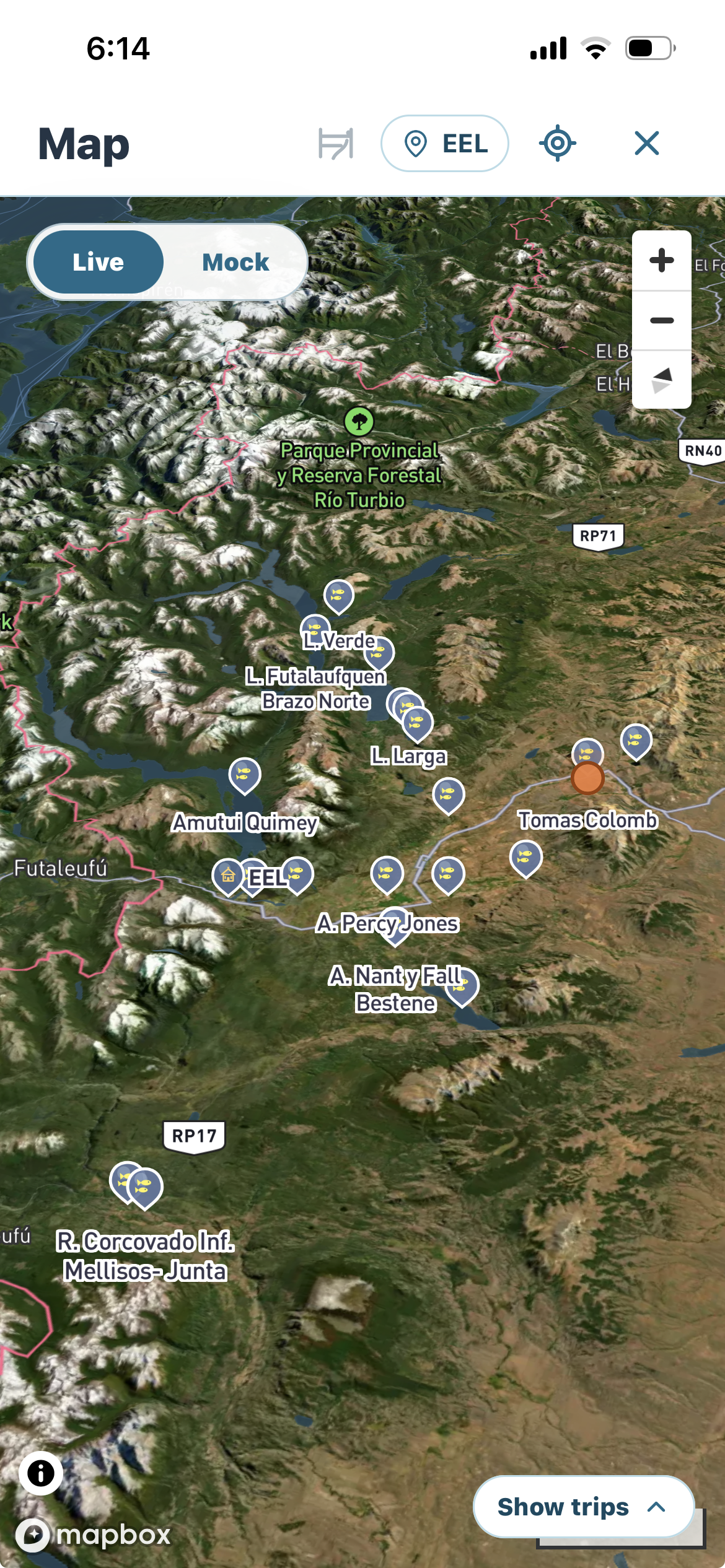
Map brings the authorized lodge, Beats, Accesses, and active Programs into one geographic view. Start by selecting the lodge so the visible markers stay inside the operating context you intend to review.
Control what the Map shows
- Use the lodge filter at the top to change the operating area.
- Use the Accesses control to show or hide Access markers when they help or clutter the current view.
- Use Show trips at the bottom to reveal active Programs. Collapse the panel when you need more map space.
- Recenter or zoom until the relationship between the lodge, Beat, Access, and active work is clear.
Open a Program marker for a compact state badge, departure/return times without seconds, and up to two client names plus the remaining count. Internal source or provenance fields are intentionally hidden. Open a Beat marker to compare exactly Pressure, Capacity, Difficulty, Distance, and Access; use Beat detail for deeper fish, flow, clarity, and field-knowledge evidence.
Treat location as operational evidence
Map data helps orient preparation and active field work. It does not replace the assignment, Program, Beat boundary, Access instructions, or execution event. Open the underlying record when a marker needs interpretation.
If the map is empty, first check the selected lodge, marker controls, location permission, connectivity, and whether active Programs are hidden. Do not broaden lodge scope merely to make markers appear.
Next: review the Guide account.