Read Calendar
Find assigned CIS work and choose the correct next action.
Calendar is the guide's work queue. It combines dates, assignments, Program states, and the active field day in one place.
A new assignment can start from a notification
When Operations saves a CIS with a newly assigned guide, Trailhead sends that person an assignment notification. Opening it goes directly to the linked CIS context and assigned role. Calendar remains the place to find that work again and follow its current state.
Read a shared OUT / IN date
A date splits diagonally only when it contains exactly two assignments from different CIS trips: one OUT and one IN, each worth 0.50 day. For example, finish Group A's departure and receive Group B on the same date. The upper-left triangle is OUT and the lower-right triangle is IN; each uses its Program lodge color, or the assignment lodge before a Program exists.
- The split can appear before either Program is created: assigned arrival/departure duties supply the half-day context.
- Tap a half to open its existing Program. If it has no Program yet, the tap selects the date; use the corresponding group card in the agenda to continue. Keep the two groups' work separate.
- Identical lodge colors can make the split look like one color. Read the group and IN/OUT labels in the agenda.
- A lodge transition within one CIS stays single-color. Two arrivals, two departures, a third assignment, or a full-day Program do not receive this split. A calendar color alone does not establish that a workload is valid.
Find transfers outside the stay
An IN transfer assigned to the Guide before the first stay appears on its actual transfer date, even outside ordinary guide coverage. Open that date to prepare its IN Program; the first stay remains separate. The final OUT date also remains assigned. A movement on an existing assignment's date adds its duty to that assignment instead of creating duplicate work.
Start the day as Guide Coordinator
Trailhead assigns one Guide Coordinator per lodge and local day. It selects
the active guide working at that lodge with the highest priority in the
explicit guide ranking: rank 1 is first. The selected person begins the day
with the duty and accrues one USD 30 premium for that guide and date. A Head
Guide may also be selected when their ranking and work assignment place them
first.
When the lodge has open Program conflicts, a red Program conflicts · N banner appears immediately before the calendar. There is no conflict icon in the header. Tap the banner to open the shared conflict queue.
The Guide Coordinator resolves routine conflicts in mobile. If the decision cannot be made safely, escalate the complete conflict to Head Guide, who is the final escalation authority.
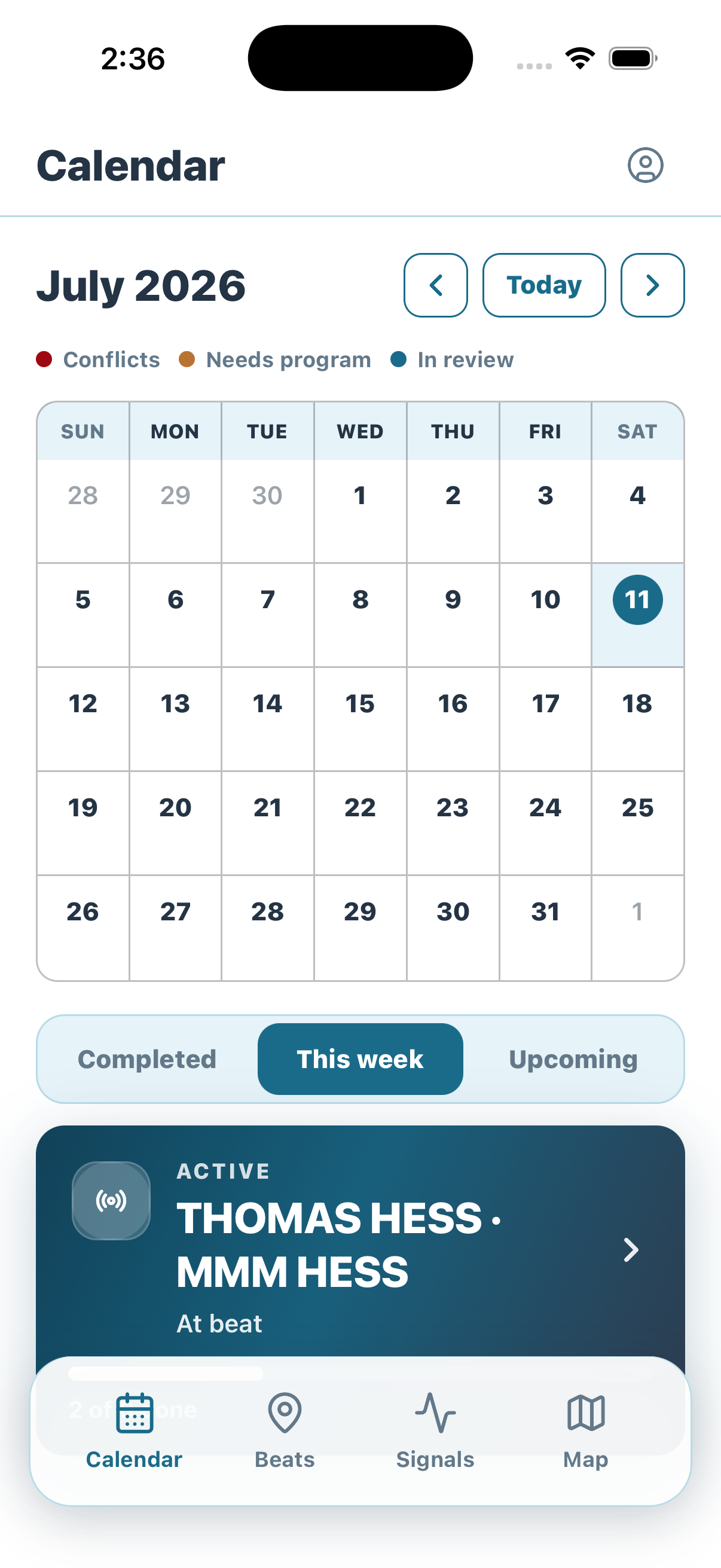
Use Calendar to recognize what needs attention before opening a CIS or Program.
Narrow the work
- This week shows work that needs attention now.
- Upcoming shows assigned CIS work that is approaching.
- Completed shows field days that already moved through execution.
The legend and cards show conflicts, assignments that need a Program, Programs in review, and the active field day. Open the existing card instead of creating duplicate work.
Understand the Program state
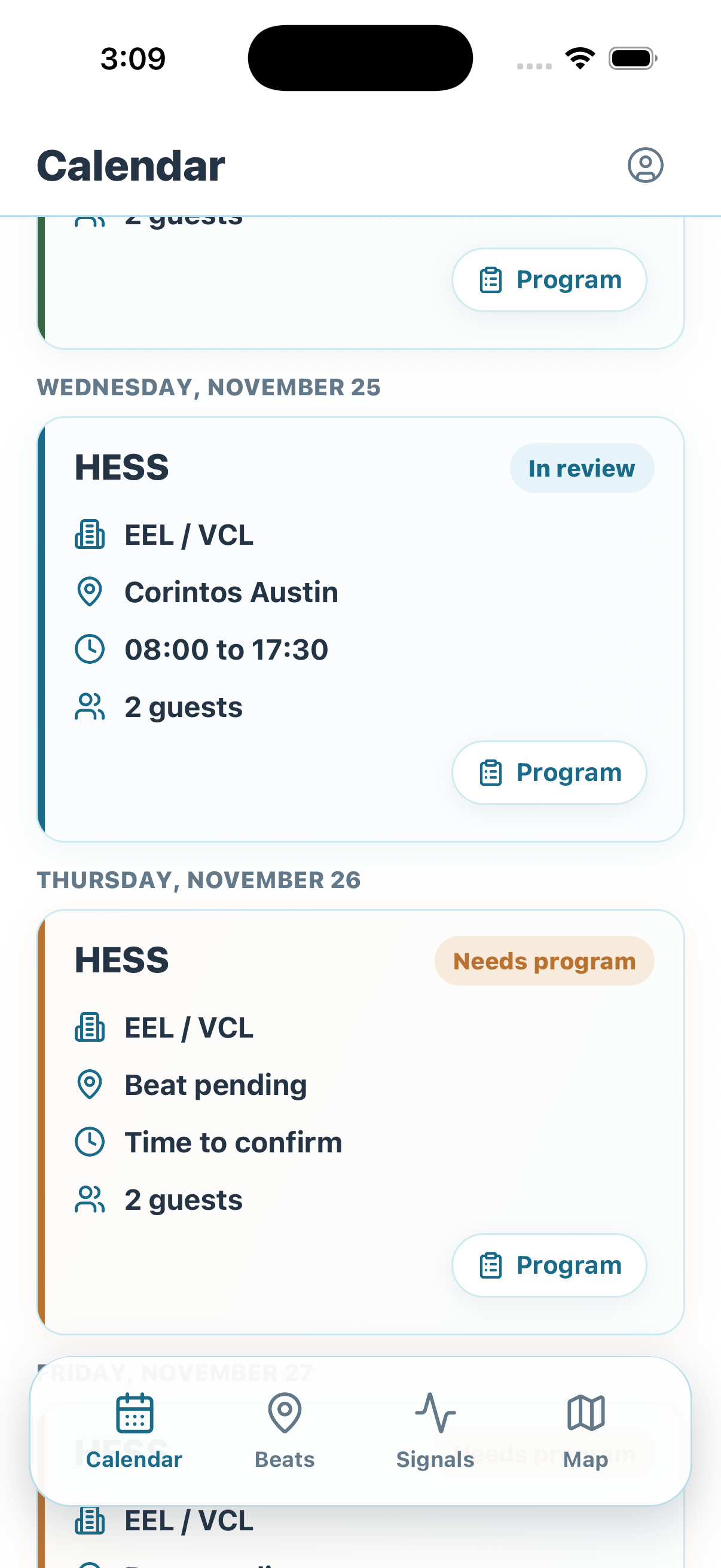
The state on each CIS card tells the guide whether to open existing work or begin Program preparation.
- In review means a Program already exists. Open it to review or continue its current workflow.
- Needs program means the assigned CIS does not yet have the Program required for that day.
Continue from the correct state
- Open the assigned CIS when clients, itinerary, or gear still need review.
- Open the existing Program when planning has already started.
- Use the Active card only to continue execution already underway.
Read assigned client reviews
Use Client Reviews in the Calendar header for review history, or open it from an eligible completed-day card to filter by date. A Guide or Assistant can read the complete daily review only when assigned to the matching Program day. The neutral detail includes all structured ratings, transfer, meal, comments, and trip/lodge/access context. Visibility does not depend on a low score or a management alert, and an out-of-assignment review stays unavailable.
Next: review the CIS.