Request CIS gear
Choose the equipment Operations should prepare for the client group.
Open Build gear request from the reviewed CIS. The Gear Request stays attached to that group and tells Operations what equipment to prepare.
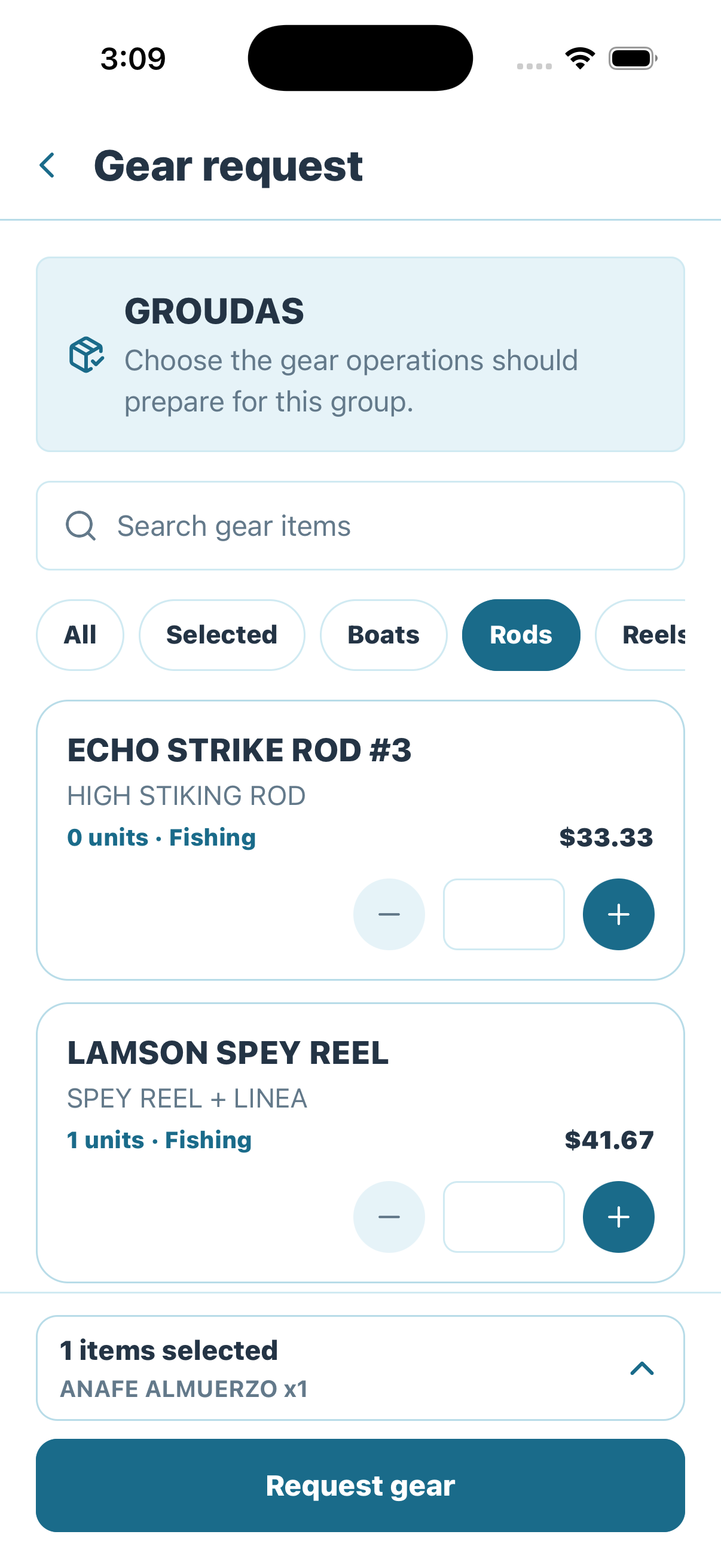
Start by confirming the CIS group, then find the equipment and quantities Operations should prepare.
Find the required equipment
- Confirm that the group name matches the CIS you just reviewed.
- Search by item name or narrow the list with categories such as Boats, Rods, Reels, or Waders.
- Read the available units and unit price before choosing a quantity.
- Use the plus and minus controls to build the request.
The request remains empty—and Request gear remains unavailable—until at least one quantity is selected.
Review the selected gear
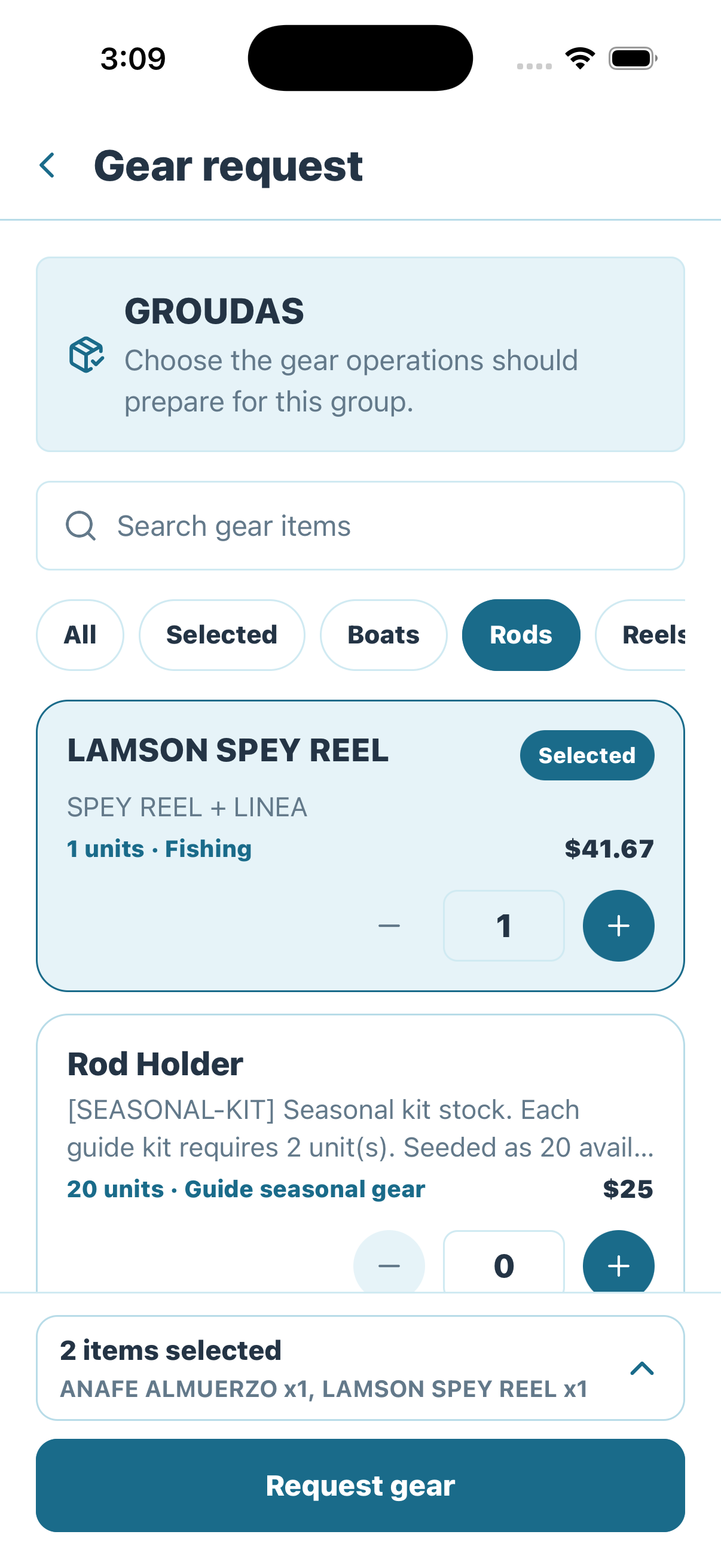
Selected items remain visible in the list and in the summary above the enabled Request gear action.
Use the Selected filter to review only the requested items. Confirm every quantity, then open the selection summary for the final review before submission.
Request only what the group needs
The Gear Request tells Operations what to prepare. It does not itself confirm fulfillment or replace inventory custody records.
Track the submitted request
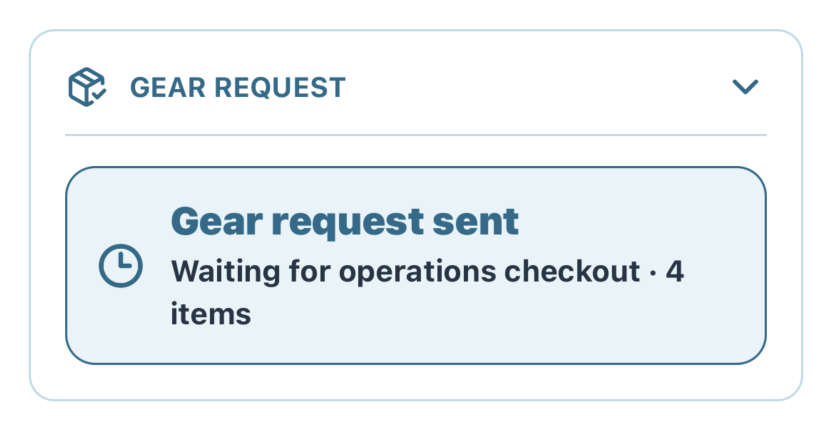
After submission, the CIS confirms that the request was sent and is waiting for Operations checkout.
The submitted state preserves the item count and makes the next owner explicit: Operations checkout. Submission records demand; it does not mean that the equipment has already been checked out or handed to the guide.
While every item is still Requested, use the visible Edit request action on the CIS to correct products or quantities. Saving the edit replaces only the requested custody rows. As soon as checkout begins, editing is locked; refresh the CIS and coordinate any physical change with Operations. Trailhead rejects a stale edit rather than rewriting checked-out custody.
Track Operations checkout
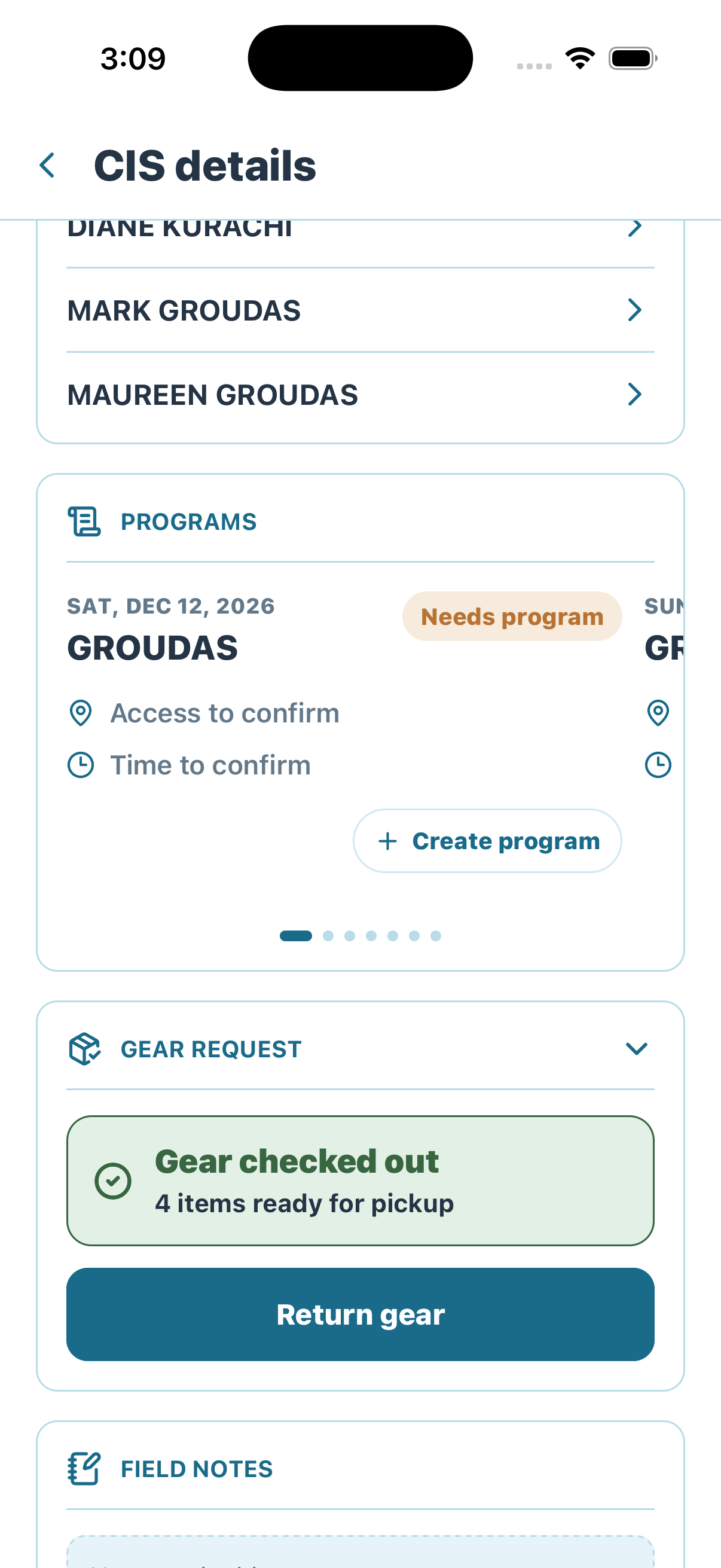
After Operations approves checkout, Guide Mobile shows the checked-out quantity, pickup readiness, and the Return gear action.
The system checkout is complete, but ready for pickup still distinguishes approval from the physical handoff. The guide can now track the checked-out gear and later start its return from the same CIS.
Next: create the Program. The checked-out gear remains ready for pickup, and its later return stays in a separate inventory workflow.